
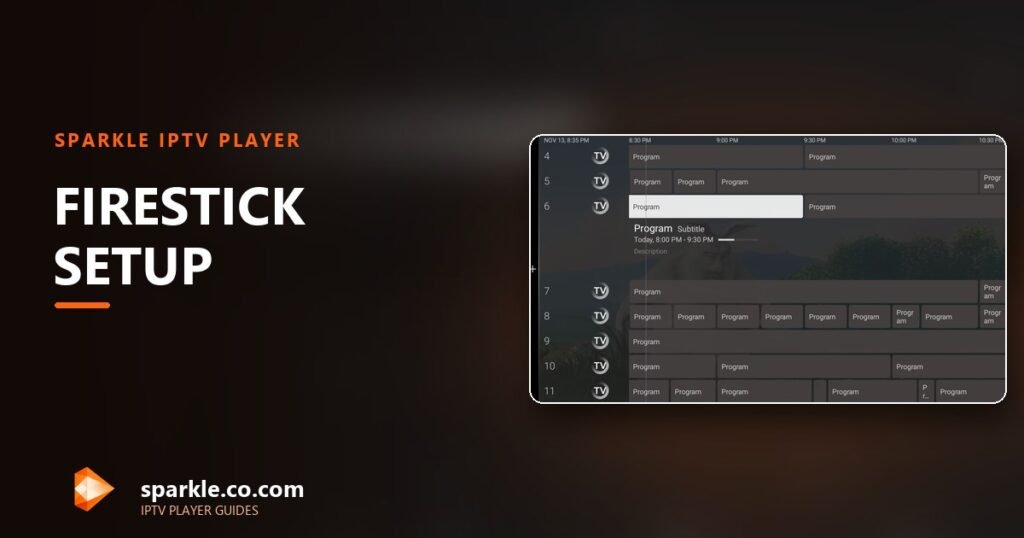
Sparkle TV is not in the Amazon Appstore, so getting it onto a Fire TV Stick means one thing: sideloading the official APK. The whole process takes about five minutes once your remote is in hand, and it is completely reversible if you change your mind later.
This guide walks through the exact order of steps, the security prompt Amazon shows you, and the errors that stop most people halfway through. It applies to the Fire TV Stick 4K, 4K Max, Fire TV Cube, the second-generation and third-generation Sticks, and Fire TV Edition televisions.
The short version
Turn on Install unknown apps for the Downloader app, open Downloader, load the official Sparkle TV APK from sparkleplayer.com, install it, then open the app and add your IPTV source. Sparkle TV ships with no channels of its own: you connect your own legal provider, playlist or media server.
What you need before you start
- A Fire TV Stick connected to your TV and to the internet.
- The Fire TV remote (the one that came with the device).
- About 150 MB of free storage, which every Fire TV Stick has unless it is packed with games.
- Your IPTV provider details, or the login for your own media server. You will need them right after installation.
- Five to ten minutes without interruptions, because the Fire TV settings menus time out quickly.
You do not need a computer, ADB, or a developer account. Everything happens on the Stick with the remote.
Step 1: Find your Fire OS version
From the Fire TV home screen, go to Settings → My Fire TV → About → Fire TV Stick. The software version is listed there. Anything on Fire OS 6 or newer has the same menu layout used below. If your device is on an older Fire OS 5 build, the developer menu lives under Settings → Device → Developer Options instead.
While you are on the About screen, check the model name. It tells you which hardware you are working with, and that matters later when you enable frame-rate matching or decide whether a 4K stream will play smoothly.
Step 2: Enable Developer Options
Fire OS hides the developer menu until you ask for it:
- Stay on Settings → My Fire TV → About.
- Highlight the device name (for example “Fire TV Stick 4K”) and press the select button on the remote seven times.
- A message appears: “You are now a developer.”
If nothing happens, move the highlight one line up or down and try again. The counter resets every time you leave the screen.
Step 3: Install the Downloader app
Downloader is the utility that fetches the APK. It is a legitimate app published on the Amazon Appstore by AFTVnews.
- From the Fire TV home screen, open the search field and type Downloader.
- Select the app with the orange icon and choose Download or Get.
- Wait for the installation to finish, then choose Open.
You can also use Settings → Applications → Manage Installed Applications to confirm it installed. If the Appstore refuses to install it, check that your Amazon account has a payment method on file even for free apps, and that the device has at least 500 MB free.
Step 4: Allow Downloader to install apps
This is the step that trips people up. Amazon blocks sideloading until you explicitly allow it per app.
- Go to Settings → My Fire TV → Developer Options.
- Choose Install unknown apps.
- Find Downloader in the list and switch it ON.
If the Downloader entry is missing, open Downloader once and return to this screen. If the whole Developer Options menu is missing, repeat Step 2. On some Fire TV Edition televisions the menu is labelled Apps from Unknown Sources instead.
Step 5: Download the official Sparkle TV APK
Open Downloader. You will see a URL field and a keyboard.
- Type sparkleplayer.com and press Go.
- On the page, select Download APK. This is the developer’s own build, not a mirror.
- Accept the download prompt when Fire OS asks whether to keep the file.
- When the download completes, Downloader offers Install. Select it.
The APK is roughly 20–40 MB depending on the release. If the progress bar stalls at zero, see the troubleshooting table below.
Only install builds published by the Sparkle TV developer. Random “modded” APKs from video descriptions are the most common source of malware on Fire TV devices, and they break the update path.
Step 6: Install and open Sparkle TV
The installer shows the permissions the app requests, which are limited to network access, storage for recordings and playback controls. Choose Install, then Open. If you closed the installer too quickly, the app is also on your Fire TV home screen under Your Apps & Channels.
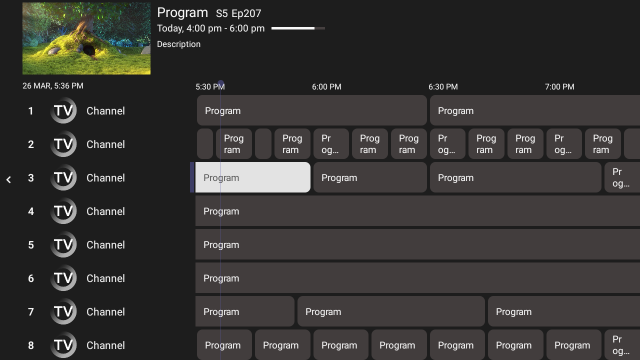
On first launch, Sparkle TV asks you to add a source. Do not panic if the channel list is empty: that is expected. The player has no bundled content.
Step 7: Add your first source
There are two paths, and both take under a minute once you have the details from your provider:
- Xtream Codes: enter the server address, port, username and password.
- M3U playlist: paste the playlist URL and, if you have one, the XMLTV guide URL.
Full walkthroughs: Sparkle TV Xtream Codes setup and M3U playlist setup. If you are completely new to the app, start with the beginner setup guide instead, then come back here.
Give the app a minute to pull categories and guide data. On large playlists the first import can take a few minutes, and the Fire TV Stick will feel sluggish while it works.
Fire TV remote and playback tips
- The Menu button opens playback options such as audio tracks, subtitles and aspect ratio.
- Rewind and Fast forward seek within catch-up and recordings; live playback uses them for timeshift when you have Plus.
- Long-press Home while watching to jump back to the Fire TV launcher.
- If the remote feels slow, disable Settings → Display & Sounds → Audio → Dolby Atmos on older Sticks; some receivers add a delay that feels like lag.
- Set Settings → Display & Sounds → Display → Video Resolution to match your TV instead of Auto on 4K Sticks that flicker between modes.
What to do when the install fails
| Symptom | Likely cause | Fix |
|---|---|---|
| “App not installed” | Corrupt partial download or conflicting old build | Delete the APK in Downloader, download again, install |
| “For your security, your Fire TV is not allowed to install unknown apps” | Toggle still off for Downloader | Re-check Step 4, then reboot the Stick |
| Downloader shows an error page instead of the file | Typo in the URL, or the host is blocked by your ISP | Retype sparkleplayer.com, try a different DNS, retry later |
| Progress bar stays at 0% | Storage full or unstable Wi-Fi | Free space under Settings → Applications, move the Stick closer to the router |
| App opens then closes immediately | Fire OS version too old, or a bad APK | Update Fire OS, reinstall the current official build |
| Channels load but video is black | Hardware decoder or HDCP issue | Switch the decoder in Sparkle TV playback settings, try a different HDMI port |
Updating Sparkle TV on Fire TV
Amazon does not push updates for sideloaded apps. When a new build is released, download the APK again from the developer’s site and install it over the existing app; your sources, favourites and recordings stay in place. Never uninstall first, because uninstalling also deletes the app’s local data.
Is sideloading safe?
Sideloading itself is a normal Android TV feature that Amazon exposes on purpose. The risk comes from where the APK comes from. Installing the build from the official site keeps you on signed releases from the developer, which is exactly what Google Play users get.
One legal note that matters: Sparkle TV is a player, not a content service. It provides no channels and no media. Whatever you load into it must come from a provider you are allowed to use, and the disclaimer on this site spells that out.
Frequently asked questions
Does Sparkle TV work on every Fire TV Stick?
It runs on Fire OS devices with enough power for video decoding, including the Fire TV Stick 4K, 4K Max, Lite, Cube and Fire TV Edition televisions. Very old first-generation Sticks struggle with modern streams even when the app installs.
Can I install Sparkle TV from the Amazon Appstore?
No. Sparkle TV is distributed as an APK from the developer’s site, and on Google Play for supported Android TV hardware. On Fire TV you always sideload it.
Will sideloading void my Fire TV warranty?
No. Enabling unknown sources is a supported setting and does not modify Fire OS. Amazon only warns you that apps from outside the Appstore are not scanned by them.
Do I need to keep Downloader installed?
Only for updates and future installs. You can remove Downloader after setup, but keeping it makes the next update a two-minute job.
Why does Sparkle TV ask for a login right after install?
Because it is a player. The first screen asks for your own provider or server details so it knows where to get channels and guide data from.
Ready to install it?
Grab the official APK, then follow the setup guide for your provider type.