
A fresh Sparkle TV install shows you an empty screen and a request for a source. That is the whole trick: the app is a player, and until you point it at a provider or a media server, it has nothing to play.
This guide covers the setup in the order that avoids the usual dead ends, then walks through the handful of settings worth changing on day one. It assumes you have already installed the app; if not, the Firestick installation guide covers sideloading and the download page has the current builds.
What “setup” actually means
You install the app, add a source (Xtream Codes, an M3U playlist, Plex, Jellyfin, HDHomeRun, Tvheadend, Enigma2, Stalker, DVBViewer, DVBLink or TVMosaic), let it import channels and EPG data, then adjust playback. Nothing else is required to start watching.
Before you touch the remote
Have these ready. Ninety percent of failed setups are missing one of them.
- The exact source details. For Xtream Codes that is a server address, a port, a username and a password. For a playlist it is the M3U URL and, ideally, the XMLTV guide URL.
- A working network path. Wired Ethernet through a USB adapter beats Wi-Fi on a TV stick every time. If you must use Wi-Fi, prefer 5 GHz.
- The provider’s status page or support contact. If the credentials themselves are dead, no setting in the app will fix it.
- A legal source. Sparkle TV does not supply channels; your provider or your own server must have the rights to what it streams.
Step 1: Install and open the app
On Android TV and Google TV, install Sparkle TV Player from Google Play. On Fire TV, sideload the official APK from the developer’s site. Both builds are the same application.
The first screen asks for a source rather than showing a demo. That is normal and a good sign: there is no bundled content to clutter the interface.
Step 2: Add your first source
Open the source management area and choose Add source. Sparkle TV asks which type of source you are connecting, because each one exposes different data: Xtream Codes returns live channels, VOD and guide data in one API, while a plain M3U playlist returns a channel list and needs a separate XMLTV file for the guide.
Enter the details exactly as your provider sent them:
- Host or server URL: often a domain or IP, sometimes with
http://orhttps://already included. - Port: commonly 8080, 25461 or 80 for Xtream, but it is whatever the provider states.
- Username and password: case sensitive. Copy and paste where possible instead of typing on a remote.
Save the source. The app connects, reads the categories and starts importing. On a large provider this can take one to five minutes; the interface stays usable but may feel slow while the import runs.
Detailed walkthroughs: Xtream Codes setup and M3U + XMLTV setup.
Step 3: Wait for the channel and guide import
Two different imports happen here and they finish at different times:
- Channels and categories arrive first, usually within a minute.
- EPG data arrives after that, and on a big playlist it can take several minutes or a manual refresh.
Do not start renaming categories or hiding channels while the import is still running. Changes made mid-import can be overwritten when the app finishes writing the list.
If the guide is still blank after ten minutes, work through Sparkle TV EPG not working rather than reinstalling. Reinstalling erases your source and starts the import from zero.
Step 4: Learn the three screens you will actually use
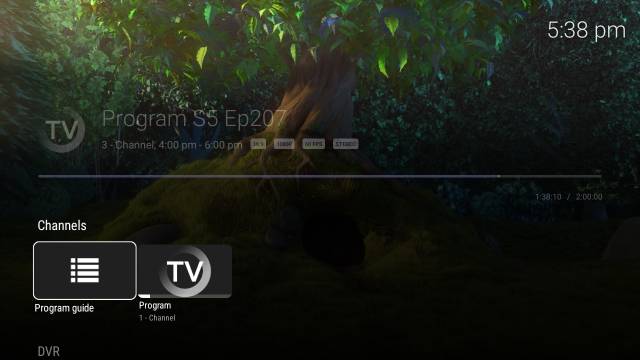
Sparkle TV is built around a channel list, a programme guide and a player. Everything else is configuration.
- Channel list: grouped by the categories your provider supplies. Long-press or use the menu button for sorting and hiding options.
- Programme guide: a timeline of what is on now and next, with channel logos and programme artwork when the EPG includes them.
- Player: opens when you pick a channel or a recording. Playback options live behind the menu button on the remote.
If you plan to use recordings or catch-up, check early whether your provider supports them. A playlist can look perfect and still have no catch-up data.
Step 5: Set sensible defaults
The app works out of the box, but these adjustments make the first week much smoother. All of them live in the app’s settings.
| Setting | What to choose | Why |
|---|---|---|
| Decoder | Hardware | Software decoding burns CPU and causes stutter on TV sticks |
| Auto Frame Rate | On if your TV supports it | Matches the stream refresh rate and removes judder on sport and film |
| Theme | Dark | The default TV-friendly look, easier on the eyes at night |
| Buffer | Default first, raise only if needed | A large buffer hides problems but adds channel-change delay |
| Language | Your language | Affects the interface and some metadata |
| Parental controls | On if children use the TV | Locks settings and categories behind a PIN |
| Home screen integration | On | Adds recent channels and “Play next” to the Android TV launcher |
Change one setting at a time and watch a channel for a minute before changing the next. Stacking changes makes it impossible to tell which one helped.
Step 6: Organise before you scroll
A provider with 8,000 channels is unusable without filtering. Spend five minutes on this and the app feels custom-built:
- Hide categories you will never open: foreign-language bouquets, adult sections, regional packages.
- Mark the dozen channels you actually watch as favourites.
- Rename messy categories if your provider’s naming is chaotic.
- Add a second source later if you also run a personal Plex or Jellyfin server; Plus allows several sources at once.
Favourites and category visibility are part of Plus. On the free tier you still get the full list and search, which is enough to evaluate the app.
Step 7: Test the things that break later
Before you settle in, run a two-minute check:
- Switch between three channels from different categories and confirm each starts within a few seconds.
- Open the guide and confirm programmes have titles and times, not just “No information”.
- Play a channel for five minutes and watch for stutter, audio drift or dropped frames.
- Put the device to sleep and wake it, then reopen the app. Sources should still be there.
- Reboot the TV box once. If the source disappears after a reboot, the app is being cleared by the system and needs storage permissions fixed.
First-week problems and what they mean
- “No channels found”: the source connected but returned an empty list. Usually an expired account or a wrong category filter, not an app bug.
- Channels appear, playback spins forever: a stream-level problem, generally the provider or your connection. See Sparkle TV not loading channels.
- Guide empty, channels fine: XMLTV missing or mismatched. That is an EPG issue, not a source issue.
- Everything buffers after 9 pm: peak-hour provider load. The buffering checklist explains how to prove it.
Frequently asked questions
Do I need a Sparkle TV account?
No. The app has no account system. It stores your sources locally on the device, and Plus is a purchase tied to your Google Play account or licence, not a login inside the player.
Can I use more than one provider?
Yes, with Plus. The free tier works with a single source at a time, which is fine for evaluating the app.
Where are my sources stored?
On the device, inside the app’s private data. Clearing app data or uninstalling removes them, so keep a note of your credentials somewhere safe.
Does setup differ on Fire TV versus Android TV?
Only the installation step differs. The source setup, guide import and playback settings are identical once the app is open.
How long does the first import take?
Channels usually arrive in under a minute. Guide data on a large playlist can take several minutes, and a manual refresh may be needed the first time.
Skip the guesswork
Follow the step-by-step setup guide for Xtream Codes or M3U, with screenshots and the exact fields the app asks for.