
Sparkle TV Setup Guide
Install the player, connect your source, load the guide and start watching — with the exact screens you will see on an Android TV, Google TV or Fire TV device.
About 8 minutes end to end for Xtream Codes · 12 minutes for M3U + XMLTV
The three-minute version
If everything goes right, this is the whole process. The rest of this page exists for the parts that do not go right.
1 · Install
Play Store search for Sparkle TV Player, or sideload the APK on Fire TV.
2 · Add source
Choose Xtream Codes for a provider login, or Playlist for an M3U link.
3 · Watch
Open the guide, pick a channel, and tune the playback settings once.
What you need before you start
Setup fails for boring reasons: a missing port, a trailing slash, an expired account, or a URL copied with a space at the end. Gather these first.
- Xtream Codes: server URL with protocol and port (for example
http://server.example:8080), username, password. - M3U: one long playlist URL ending in
.m3uor.m3u8, and if available an XMLTV file ending in.xmlor.xml.gz. - Server-based sources: the local address of your Plex, Jellyfin, HDHomeRun, Tvheadend, Enigma2 or Stalker portal, plus credentials if it needs them.
- Storage for recordings if you plan to use DVR — internal storage is fine to start, a USB drive is better.
Step 1 — Install on your device
Android TV and Google TV
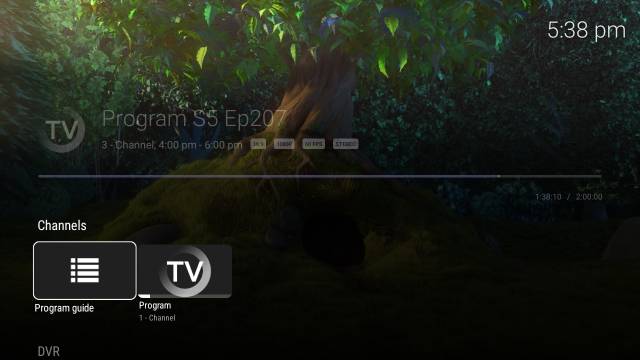
- On the TV, open Google Play and search for Sparkle TV Player.
- If the listing is not available in your region, download the APK from the download page on a computer or phone.
- To install an APK on the TV, use a file manager or the Send files to TV style app, and allow the installer to install unknown apps when prompted.
- Open Sparkle once it appears in your apps row.
Fire TV and Fire TV Stick
- Install Downloader from the Amazon Appstore (search “Downloader” by AFTVnews).
- Go to Settings → My Fire TV → Developer options and enable Install unknown apps for Downloader.
- Open Downloader, paste the APK link from the download page into the URL field and confirm.
- When the download finishes, choose Install, then delete the APK file to free space.
Fire OS note: if the install button is greyed out, the download is incomplete. Delete the partial file in Downloader and download again — a stable connection matters more than speed here.
Step 2 — Add your source
In Sparkle, go to Settings → Sources → Add source. Pick the type that matches what your provider or server gave you.
Option A — Xtream Codes (recommended for IPTV)
- Choose Xtream Codes API.
- Enter the server / host exactly as sent, including
http://orhttps://and the port. Remove any trailing/. - Type the username and password. Both are case sensitive; copy-paste beats typing on a TV remote.
- Save. Categories, channels, VOD and the EPG are fetched automatically — this usually takes 10–60 seconds.
Why this option first: one login covers live TV, catch-up, movies, series and the guide. With an M3U link you often have to supply the guide separately.
Option B — M3U playlist + XMLTV guide
- Choose Playlist and paste the full M3U URL, protocol included.
- Name the source something you will recognise later if you keep several.
- Add the XMLTV URL if your provider supplied one — without it the guide stays empty.
- Save and wait for the import. A playlist with tens of thousands of entries can take a couple of minutes the first time.
Option C — your own server or tuner
If you do not use an IPTV provider at all, Sparkle can read from a home server or an antenna tuner. You will need the local IP address of that machine and, usually, a username and password.
| Source | What you enter |
|---|---|
| Plex | Server address, then sign in to your Plex account |
| Jellyfin | Server URL plus a Jellyfin user and password |
| HDHomeRun (gen 4+) | Device IP; supports Storage Engine for server-side timeshift |
| Tvheadend 4.2+ / HTSP | Server IP, port and credentials (HTSP needs API 24+) |
| Enigma2 (VU+, Dreambox) | Receiver IP and web-interface credentials |
| Stalker Portal | Portal URL and MAC address when required |
| DVBViewer | Recording Service or Media Server address |
| DVBLink | Server address (6.x or newer) |
| TVMosaic | Server address |
Step 3 — Make the guide usable
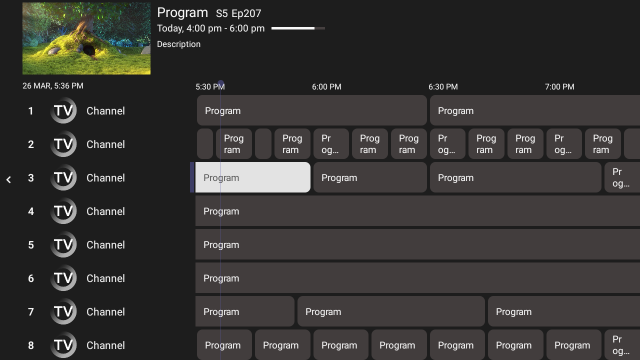
A guide that loads but shows “No information” for every channel is almost always a mapping problem, not a bug.
- Refresh on demand: settings → EPG → refresh. Do it after any provider change.
- Check the time zone: programmes shifted by exactly one or two hours mean the guide is being read in a different time zone than your device.
- Missing logos: logos come from the playlist/XMLTV side. If your provider ships none, channels show text labels until you pick a theme that hides them.
- Catch-up: only appears for channels where the provider archives programmes. No archive, no catch-up.
Step 4 — Tidy the channel list
A provider can hand you 8,000 channels. You will watch maybe thirty of them. These are Plus features, and they are the difference between a usable list and endless scrolling:
- Favourites — star the channels you actually watch and open the favourites row first.
- Hide — remove whole categories (adult, regional, shopping) from the list without touching your provider account.
- Sort — reorder channels and categories by number, name or your own preference.
- Search — by channel, programme, movie or series, across sources.
Step 5 — Playback settings worth changing once
- Auto frame rate (AFR) — match the display refresh rate to the stream. Kills the judder on 25/50 fps channels when your TV runs at 60 Hz.
- Audio track — many international channels carry several languages; pick yours instead of switching per channel.
- Subtitles — CC, DVB and teletext are supported, including channels that only ship teletext.
- Theme and sleep timer — a dark theme is easier at night, and the sleep timer avoids leaving the TV on until morning.
- Remote customisation — remap buttons so the ones your remote actually has do what you expect.
Step 6 — DVR, timeshift and multiview (Plus)
This is where Sparkle stops being a player and behaves like a set-top box.
DVR
Pick storage, then schedule single programmes, whole series or a manual time window from the guide. Recordings show up in a dedicated row next to live TV.
Timeshift
Pause live TV, walk away, come back and resume — or jump back a few minutes to catch a goal. Needs free storage and a stream your provider allows to be buffered.
Multiview
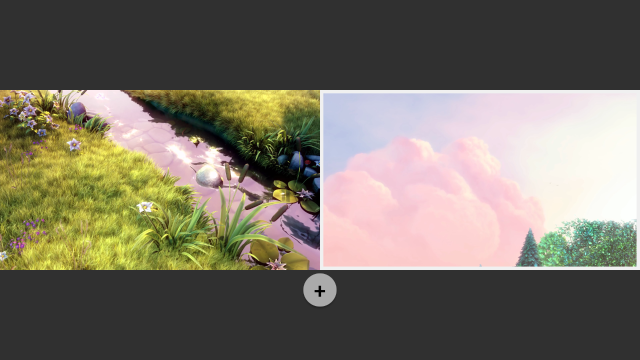
Watch several streams on one screen — sport on one tile, news on another. Every simultaneous stream consumes bandwidth and a provider connection slot.
Step 7 — A second TV on the same account
Adding Sparkle to a bedroom TV is the same procedure: install, add the source, wait for the guide. Repeat the credentials exactly — a second device does not inherit the first one’s setup.
The limit you will hit is not technical. Most IPTV subscriptions allow one or two simultaneous connections. If the second TV reports invalid credentials while the first is watching, the account is full — not the app. Your provider controls that number.
If you only need a second screen occasionally, log the first device out before switching. If you want both at once, you need a plan with more connections, or Plus with several sources pointing at different servers.
Storage hygiene for DVR
- Budget roughly 1–3 GB per hour of HD recording; 4K multiplies that.
- Use a USB drive rather than internal TV storage — the operating system also needs room to breathe.
- Delete series you have watched; recordings do not expire on their own.
- Timeshift also writes to storage while you watch. If pause fails, free space is the first thing to check.
Before you ask for support
Four things make a support message solvable in one reply instead of five:
- The device model (for example “Fire TV Stick 4K, 2nd gen”) and the app version.
- Whether the problem hits one channel, one category, or everything.
- What the same credentials do in another player or on another device.
- A photo of the error screen — exact wording beats a description of it.
Troubleshooting the five usual failures
| Symptom | Most likely cause and fix |
|---|---|
| Login rejected | Wrong server URL format (missing port or protocol) or expired account. Test the same credentials in another player to isolate it. |
| Catalogue empty | The source saved but returned nothing: expired subscription, provider changed domain, or connection limit already used by another device. |
| Guide empty, channels fine | Missing XMLTV URL on an M3U source, or a guide refresh never completed. Add the XMLTV link and refresh. |
| Buffering on every channel | Local network or provider. Try Ethernet or 5 GHz, then test another device on the same account. |
| Recordings fail | Storage full or not writable, or the provider blocks recording for that channel. |
A longer list of questions — including pricing, devices and legal points — is on the FAQ page.
Need the app first?
Grab the APK for Fire TV or open the Google Play listing for Android TV and Google TV.
Related guides
- Sparkle TV Xtream Codes setup — host, port, username and the errors that follow
- Sparkle TV M3U playlist setup — playlist URL plus an XMLTV guide
- Sparkle TV EPG not working — nine fixes for a blank or partial guide
- Channels not loading in Sparkle TV — work from the source to the device