
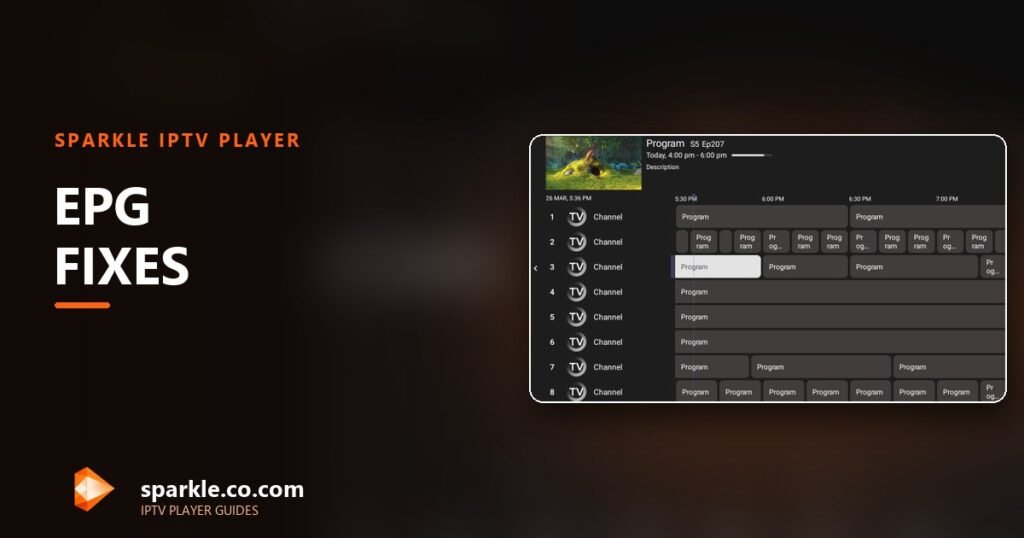
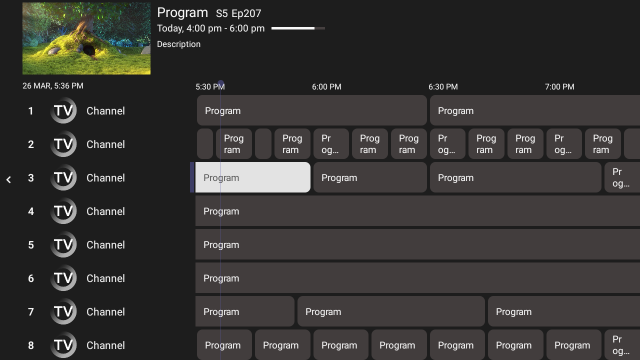
The programme guide is the part of an IPTV player people notice last and miss most. Channels still play without it, but you lose the timeline, the “what’s on next” view, catch-up entry points and programme artwork.
A blank Sparkle TV EPG almost never means the app is broken. It means one of four things: the guide was never imported, the guide URL is dead, the channel identifiers do not match, or the provider simply has no data for those channels. The nine fixes below are ordered from the most common and cheapest to the most invasive.
Before you reinstall anything
Reinstalling deletes your source and forces a full re-import. Check the guide URL, trigger a manual refresh and confirm the channel IDs first. Those three steps solve most cases in under five minutes.
How Sparkle TV builds the guide
Two separate imports feed the guide:
- Channels come from your source: an Xtream panel, an M3U playlist, Plex, Jellyfin, HDHomeRun, Tvheadend, Enigma2, Stalker, DVBViewer, DVBLink or TVMosaic.
- Guide data comes either from the same API (Xtream usually includes it) or from a separate XMLTV file that must be attached to the source.
If the channels arrived and the guide did not, the source is fine and the guide side is the problem. That distinction decides which half of this article you need.
Fix 1: Trigger a manual guide refresh
The first import sometimes finishes the channels and gives up on the guide, especially on a slow TV stick. Open the app’s settings, find the source, and run a guide refresh. Then leave the app open on the guide screen for a few minutes without switching channels.
If the guide fills in, you are done. If it stays empty, move to Fix 2.
Fix 2: Verify the guide URL in a browser
Take the XMLTV URL and open it on a computer. What you should see is XML: a <tv> root element with <channel> and <programme> entries. What you should not see is:
- a login page,
- a JSON error,
- an empty
<tv></tv>document, - a 403 or 404 response.
Providers rotate guide links the same way they rotate playlists. An old URL can return a valid-looking error page that the player cannot parse. If the URL is dead, request a fresh one and update the source.
Fix 3: Confirm the guide is attached to the right source
Sparkle TV lets a source carry its own guide. When you add a second source, or edit an existing one, the guide field can end up empty. Open the source settings and check that the EPG field is populated, then save and refresh.
This is the quietest failure mode: everything looks configured, but the guide slot is blank because a previous edit cleared it.
Fix 4: Match XMLTV channel IDs to playlist tags
This is the technical one. XMLTV identifies channels with <channel id="bbc1.uk">. The playlist tags each stream with tvg-id="bbc1.uk". When the strings differ by even a character, the channel plays and the guide stays empty.
How to check:
- Download the XMLTV file and open the first few
<channel id="...">entries. - Look at the playlist entry for the same channel and find its
tvg-id. - Compare. If they differ, you need a guide built for that playlist, or a channel mapping step in the app if one is offered.
Providers usually publish a matching pair. When they do not, ask support which guide file goes with the playlist you were given.
Fix 5: Check the device time zone
The guide is a set of timestamps. If the TV device is set to the wrong time zone, a perfectly imported guide shows programmes two or three hours off, or appears to show nothing “now”.
Go to the device settings, confirm the time zone and the automatic time source, then reopen the guide. On Android TV and Fire TV this is under system settings, not inside Sparkle TV. A device with a dead CMOS battery or a manual clock can drift after every power cut.
Fix 6: Understand how much guide data your provider sends
Many providers publish only 24 to 48 hours of guide data. Scroll two days ahead and you will find an empty timeline that looks like a bug. It is not: there is nothing to display.
Check how far the data goes by scrolling forward. If it stops at the same point every day, that is the provider’s feed depth, and only they can extend it.
Fix 7: Rule out per-channel gaps
A guide can be 90 percent full and still look broken if the channels you watch are in the missing 10 percent. Niche channels, regional feeds and foreign bouquets are the usual suspects, because the provider has no EPG source for them.
Test with a mainstream channel from the same source. If that one has data, the guide is working and the gap is content-specific.
Fix 8: Clear stale guide data and re-import
If the guide shows old programmes, duplicate entries or yesterday’s schedule under today’s date, the local database is stale. Use the app’s guide refresh first. If that fails, clear the guide data from the app’s settings and import again, without deleting the source itself.
Only if the app offers no way to clear guide data should you consider removing and re-adding the source. That is a bigger hammer: it resets favourites and hidden categories.
Fix 9: Check device storage and memory
Guide databases are large. A Fire TV Stick with 300 MB free can fail to write a full week of data and silently keep an old copy. Check free storage under the device settings, remove unused apps, and reboot before refreshing again.
On low-RAM devices, the import can also be killed when another app takes focus. Keep Sparkle TV in the foreground until the refresh completes.
Symptom to cause, in one table
| What you see | Most likely cause | First fix |
|---|---|---|
| Guide completely blank, channels fine | No guide attached or dead URL | Fix 2 and Fix 3 |
| Some channels blank, others fine | Missing per-channel data | Fix 7 |
| Times off by hours | Device time zone | Fix 5 |
| Guide stops 24–48h ahead | Provider feed depth | Fix 6 |
| Old programmes under new dates | Stale local database | Fix 8 |
| Guide fine, logos missing | Playlist has no tvg-logo | Ask provider for a list with logos |
| Guide loads then resets after reboot | Storage cleared by device | Fix 9 |
What not to do
- Do not reinstall the app first. It destroys the source and rarely fixes a guide problem.
- Do not add three different XMLTV files hoping one works. Conflicting guides create duplicate programmes and confusion.
- Do not edit the XMLTV file by hand unless you are comfortable with XML. One broken tag invalidates the whole document.
- Do not blame the player for provider data. If the file has no programmes, no app can invent them.
When to contact your provider
Send them three facts: the channel that has no data, how far the guide extends, and whether the XMLTV URL returns XML in a browser. That message gets a useful answer. “EPG doesn’t work” gets a script.
Frequently asked questions
Why is my guide blank after adding a new source?
The guide import runs separately from the channel import and may have failed silently. Trigger a manual refresh and confirm the EPG field is filled in the source settings.
Can I use a different EPG provider than my IPTV provider?
Yes, if the channel IDs match. Most people use the guide their provider supplies because remapping IDs across thousands of channels is impractical.
Does Sparkle TV Plus unlock EPG?
No. Guide data comes from your source. Plus adds features such as DVR and timeshift, not guide content.
How long should the first guide import take?
A few seconds on a small playlist, several minutes on a large one. If nothing has appeared after ten minutes, treat it as a failure and work through the fixes above.
Still stuck on setup?
The full setup guide covers Xtream and M3U side by side, including the guide fields most people miss.